# Chat Messenger Page

## Overview

This page allows a user to manage multiple conversation threads with different users. A user can click into one of the threads and send or view messages/attachments.

## Structure

When this page is added to your app, it will come with two main groups:

**Group Main left threads panel**\
The top portion of this panel includes a search input where a user can search for keywords in all thread messages. Clicking on **Group Open thread actions (action)** will open a focus group with the option to view all archived threads. Clicking on **Group Create new thread (action)** will start a new thread, allowing the user to invite other users to the thread and send a message or attachment.&#x20;

The bottom portion of the panel includes two repeating groups: **RepeatingGroup threads** for displaying all threads that the user is a part of and **RepeatingGroup messages (search)** for displaying thread messages that contain the searched keyword(s). To display vague timestamps for the messages, we use the free plugin **Relative Time with Moment.js** by Louis Adekoya.

**Group Main message\_thread**\
This group displays all messages between users in a thread in **RepeatingGroup thread messages**.

* **Group Inner chat options\_thread** includes a few actions:
  * **Multidropdown invite user to chat** to invite users to a new thread
  * **Group Edit thread (action)** that will open a focus group with the option to archive or delete the thread
  * On mobile, a "<" chevron to return to the list of threads view<br>
* **Group Main Messages container** contains **RepeatingGroup thread messages**. You have two message formats to choose from:
  * **iMessage format (default)**\
    To hide this message format, select **Group Main iMessage style**, go to the Layout tab and uncheck the box for *This element is visible on page load*.<br>

    <figure><img src="https://content.gitbook.com/content/HCmz75EtH7rhYwwnva6o/blobs/KVCLwke0FllIyzlXwHlJ/Screen%20Shot%202023-05-25%20at%2012.02.52%20PM.png" alt="" width="375"><figcaption></figcaption></figure>
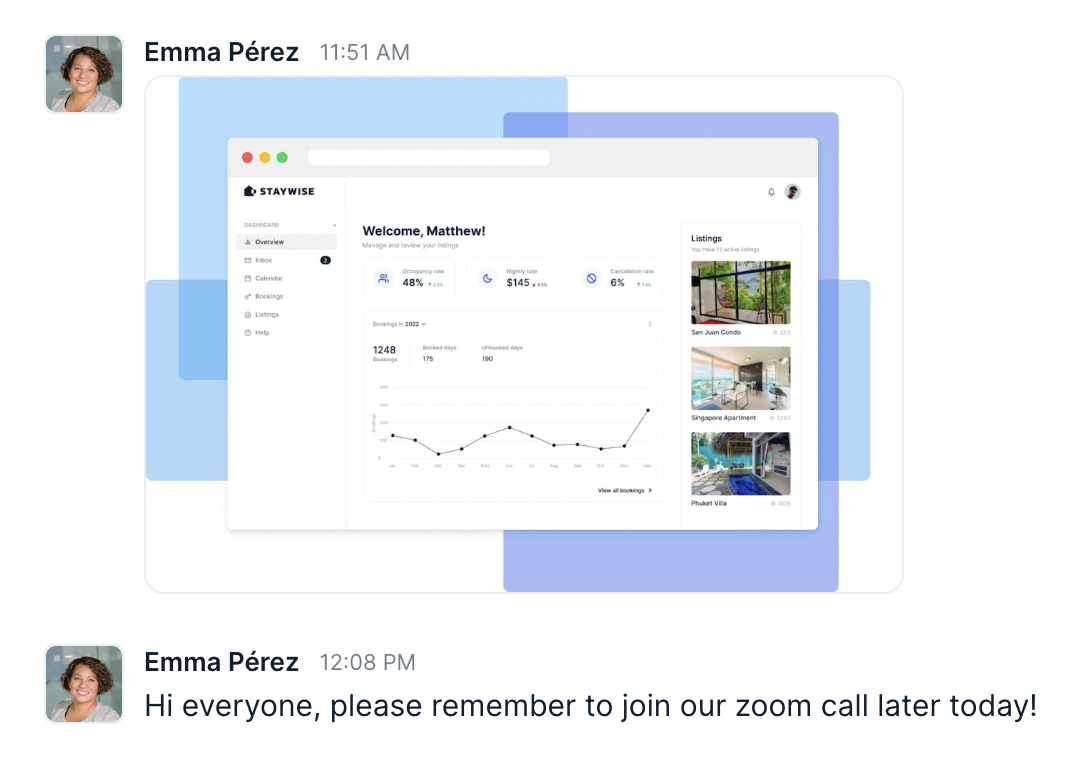
  * **Slack format**\
    To show this message format, select **Group Main slack style**, go to the Layout tab and check the box for *This element is visible on page load*.

    <figure><img src="https://content.gitbook.com/content/HCmz75EtH7rhYwwnva6o/blobs/OdAWwrLORCWqErvXpSbH/Screen%20Shot%202023-05-25%20at%2011.47.44%20AM.png" alt="" width="375"><figcaption></figcaption></figure>
  * **Group Main message input** includes the UI to compose a message, attach a file, and view file attachments. When an attachment is added, it will show underneath the message input. Clicking on it will open the attachment in a new tab for previewing. Clicking on **Group Inner delete file** will delete the attachment and allow you upload a new attachment.<br>
* **Popup Hidden Variables**\
  This popup includes various variables that are referenced in workflows or conditionals on the page.

  * **var - ⚙️ app settings** - This group stores the `App settings` (e.g., app name, primary color, and etc.)
  * **var - dummy variable** - This is a placeholder group for users to add their own variable.
  * **var - ⚙️ current page width <1100?** - This group evaluates when the viewport view is less than 1100. It controls the display settings for when to show the tablet and mobile layout of the chat messenger.
  * **var - ⚙️ start new thread?** - This controls the visibility rule of **Group Inner new thread** to indicate a new thread is being created by the user.
  * **var - ⚙️ current chat thread** - This group stores the `thread` that the user is currently viewing.&#x20;
  * **var - user viewing chat** - This group stores the `user` information (*Current User* who is viewing the thread and messages). There is a temporary conditional statement that you will need to remove as part of the page setup.
  * **var - ⚙️ view archived chats?** - This group controls the visibility rule for displaying the archived chats UI.
  * **var - ⚙️ chat thread exists between users** - This group checks for existing threads between the users. When the *Current User* is starting a new thread and inviting other users to the thread, if a thread between the users already exists then pressing the send button will send the message to the existing thread between the users. If a thread between the users doesn't already exist then it will compose a new thread.
  * **var - ⚙️ users list to check in thread** - This group stores the list of users when composing a new thread (referenced in **var - ⚙️ chat thread exists between users**).

  For more information on how to use hidden variables, click [here](https://docs.airdev.co/canvas/canvas-functionality/data-and-workflows#using-the-hidden-variables-popup).

## How to set up

### Customizing the message format

* In **Popup Hidden Variables**, update **var - user viewing chat's** data source to include any filters for the user who is viewing the chart
  * You would want to keep the data source for this group here to `Current user` and remove the conditional statement (Do a search for users:first item is a placeholder for demo purposes).\
    ![](https://content.gitbook.com/content/HCmz75EtH7rhYwwnva6o/blobs/jmXkhY1hOFFOmTRuknIJ/chat5.png)\
    \
    ![](https://content.gitbook.com/content/HCmz75EtH7rhYwwnva6o/blobs/tEsAlIeKF3q5X8RwYGZ9/chat6.png)<br>
* Select a message format by showing **Group Main iMessage style** or **Group Main slack style**. Hide the format that you are not using.

### \[Optional] Enable functionality to send multiple attachments

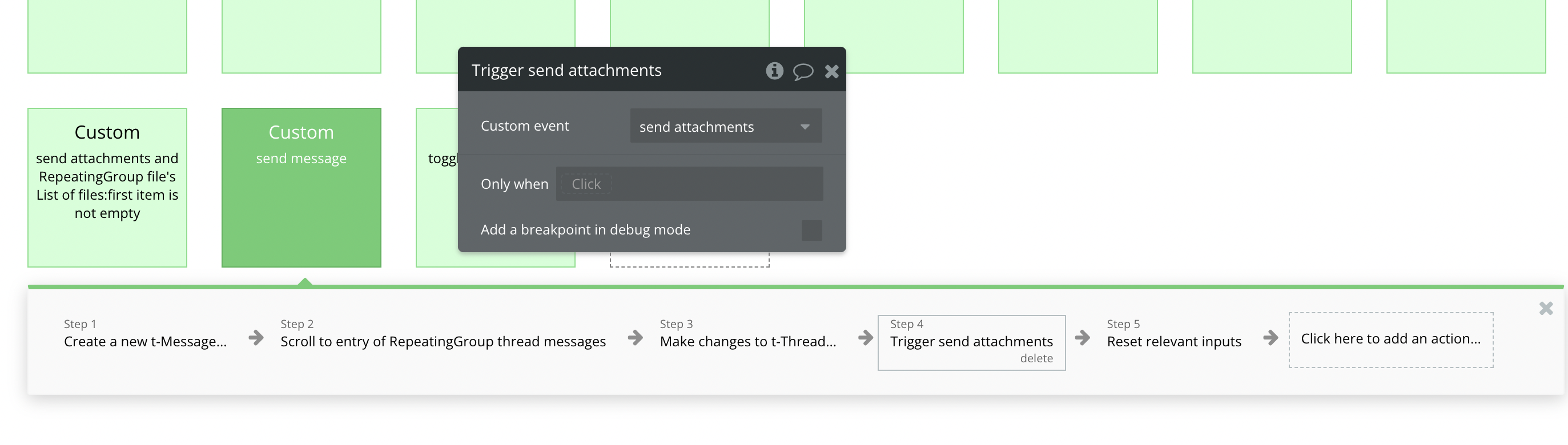
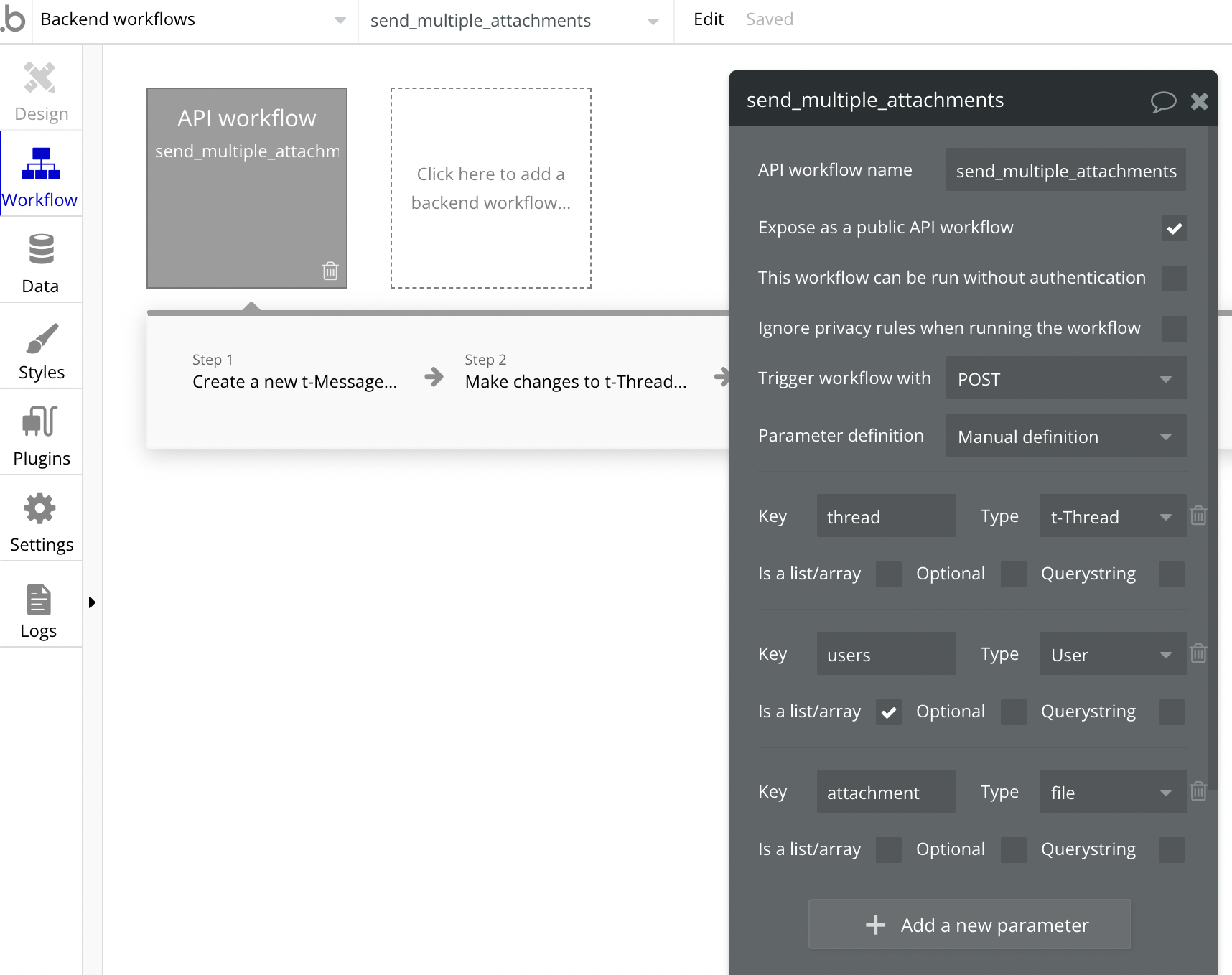
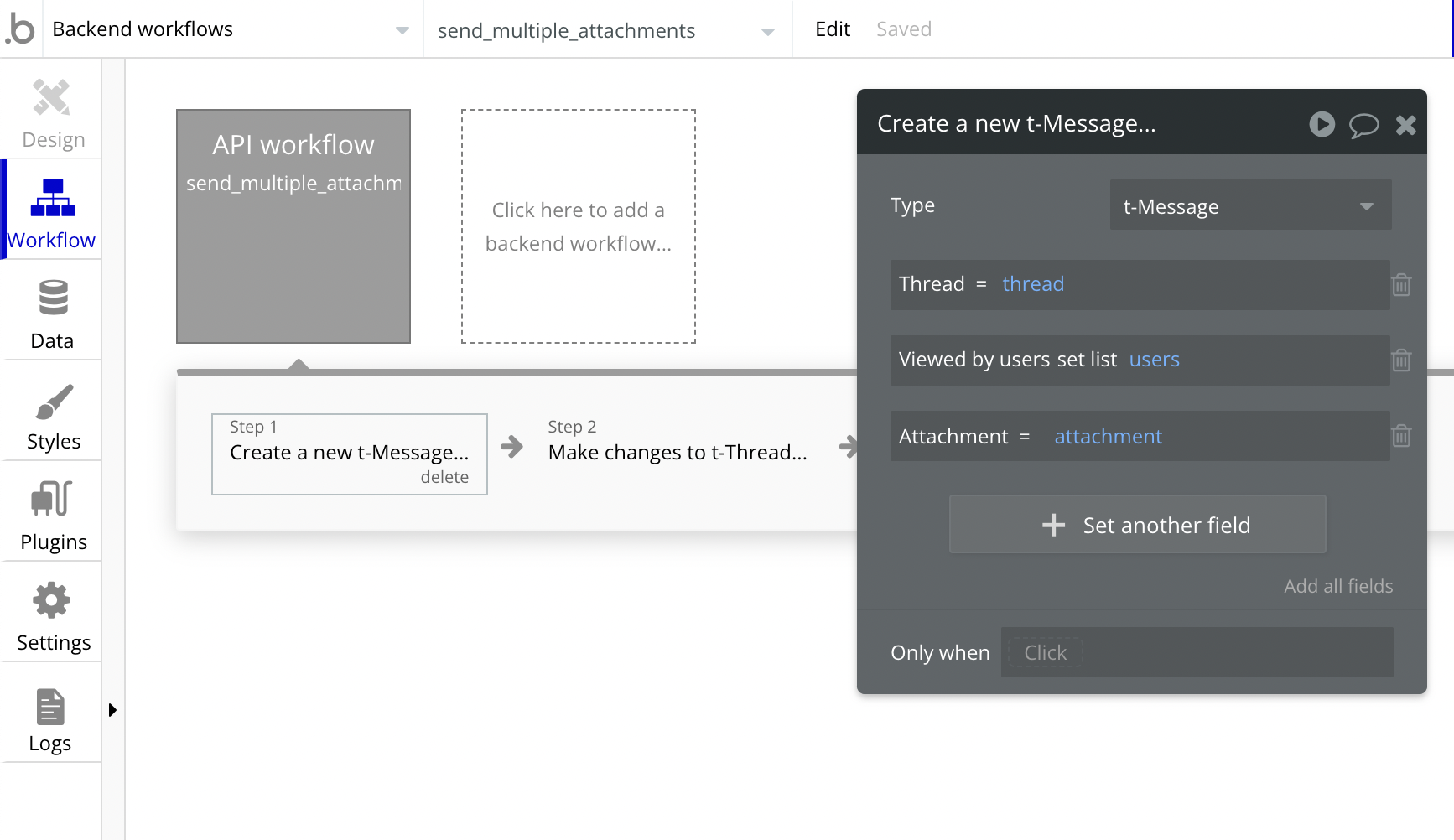
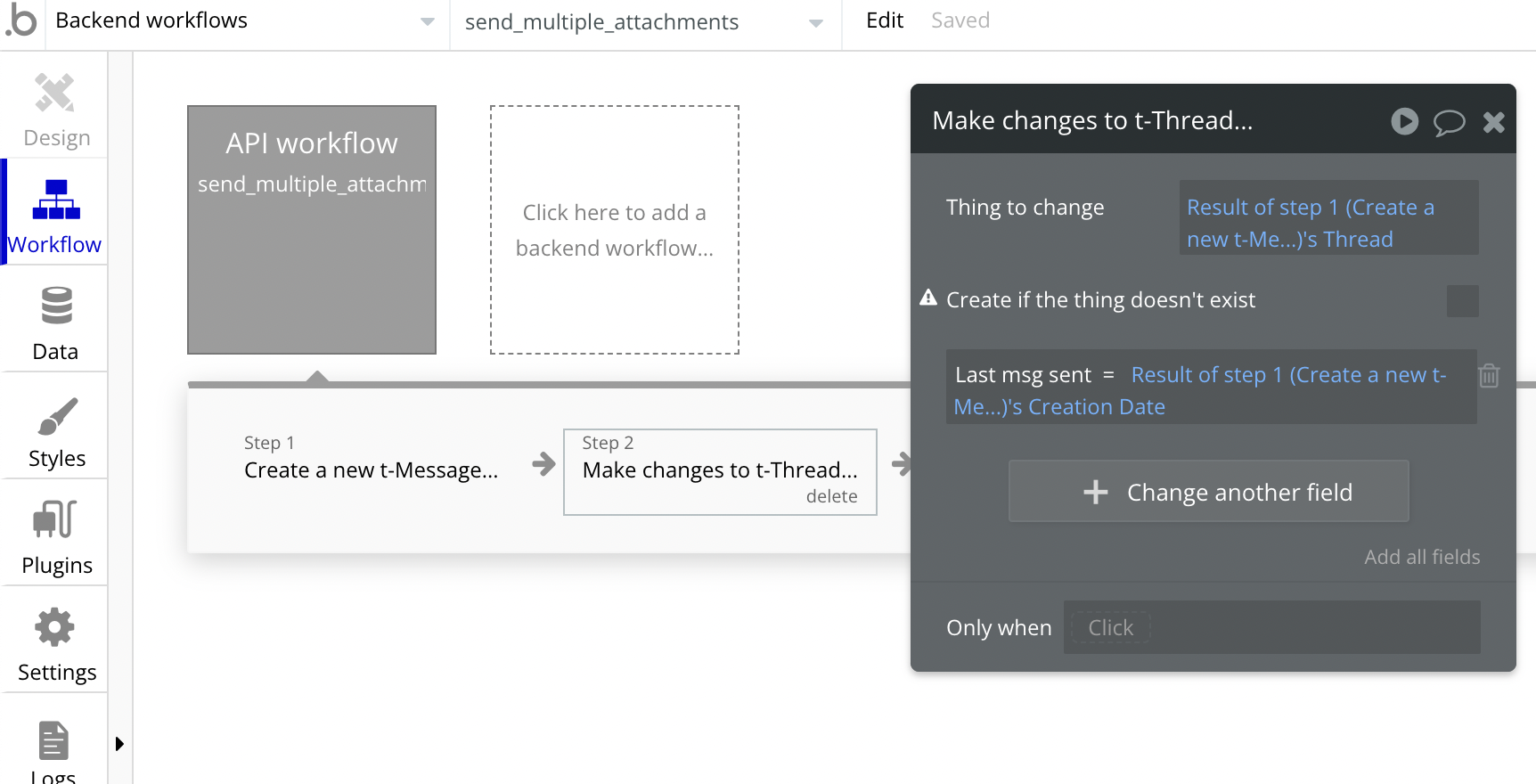
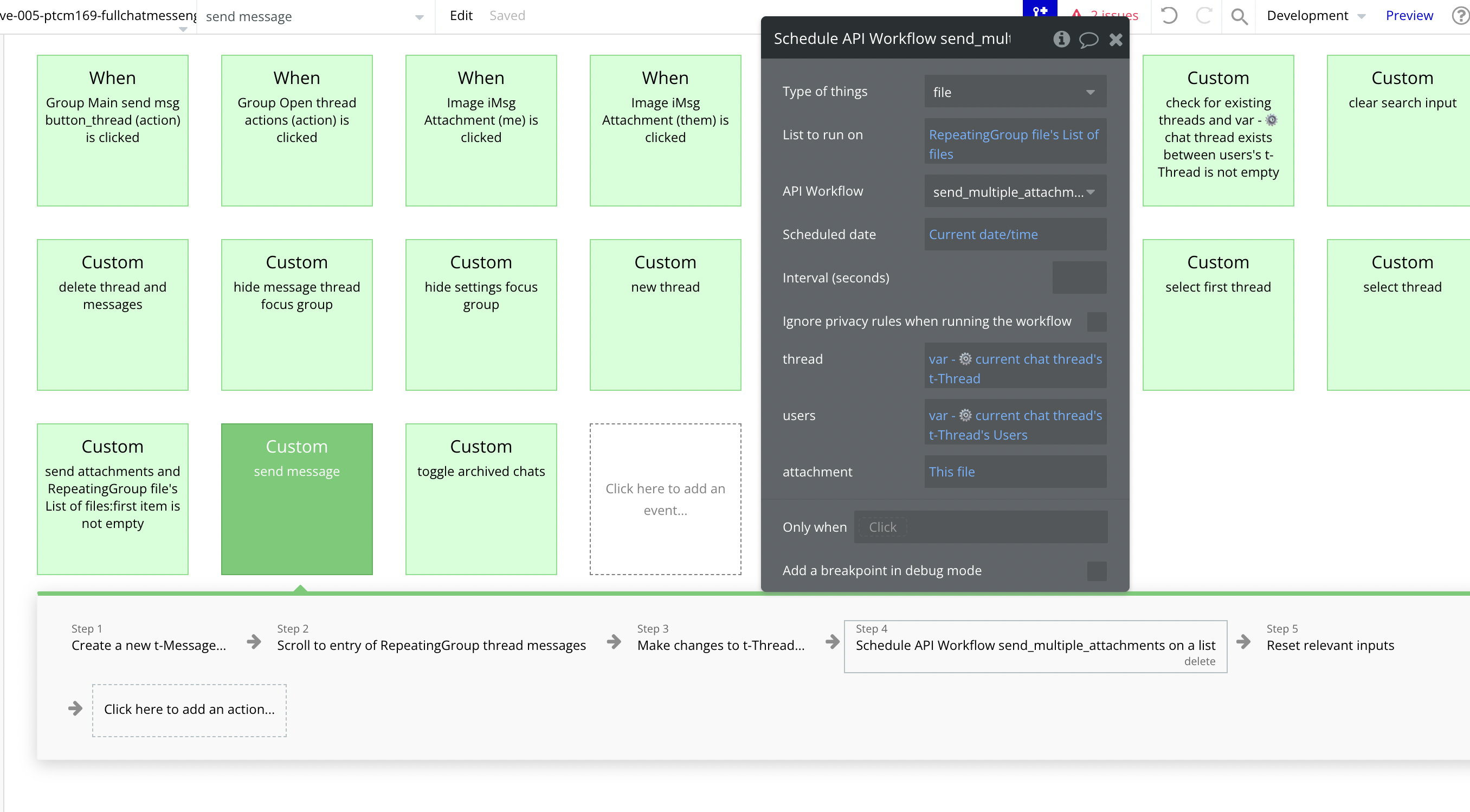
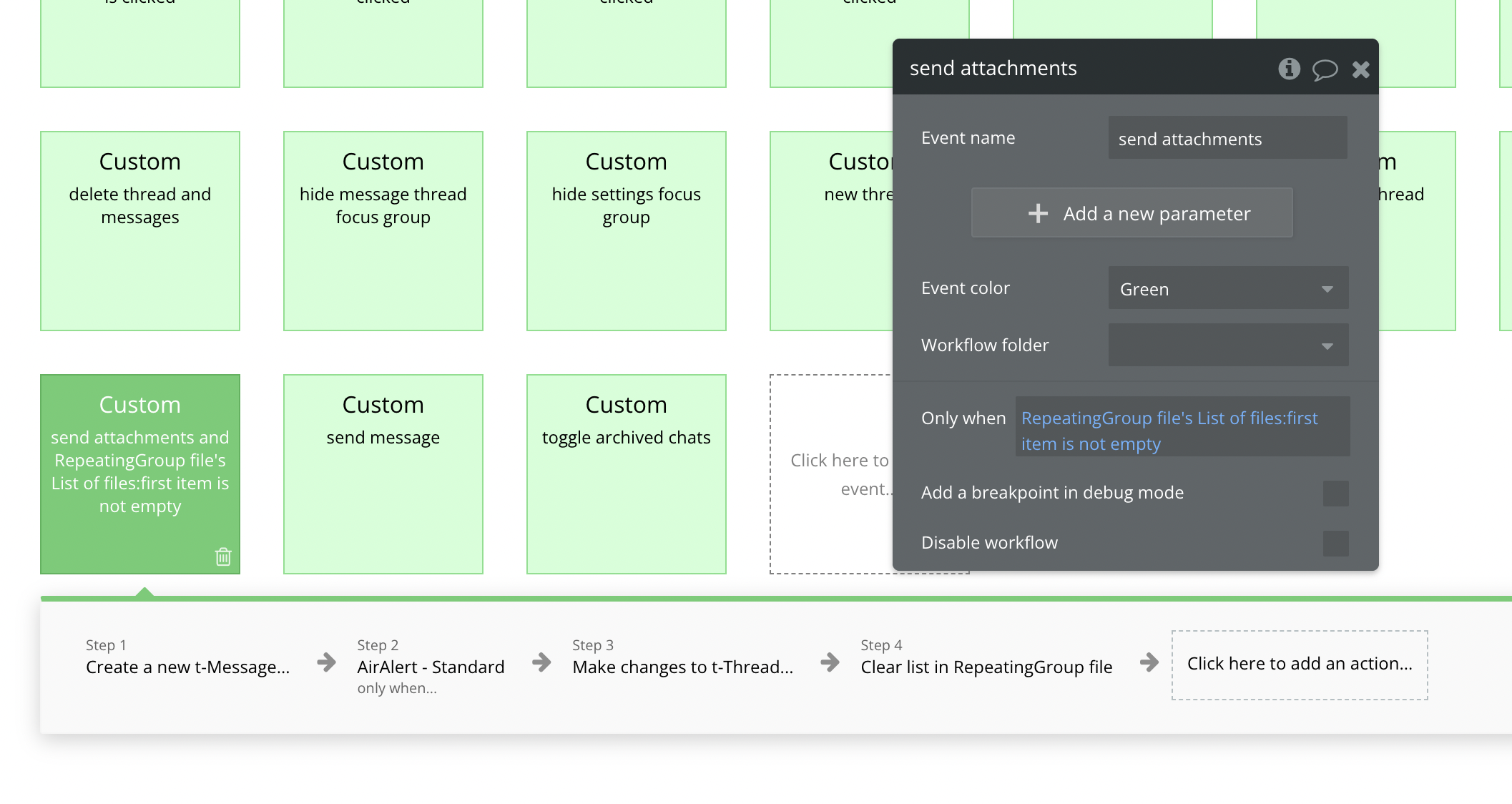
* By default, users can attach multiple attachments when composing a message. However, the workflows are currently set up to only send the first attachment in the attachments list (**RepeatingGroup file**). To send multiple attachments when you click **Group Main send msg button\_thread (action)**, it would be best to use an API workflow. Your Bubble app would need to be on a paid Bubble plan to use API workflows.
*

```
<figure><img src="https://content.gitbook.com/content/HCmz75EtH7rhYwwnva6o/blobs/08C7boOfVD4NWntrL6sM/Screen%20Shot%202023-05-25%20at%202.18.04%20PM.png" alt="" width="334"><figcaption><p>List of attachments</p></figcaption></figure>
```

<figure><img src="https://content.gitbook.com/content/HCmz75EtH7rhYwwnva6o/blobs/BEDg0CRJ6j5YDesKoyb1/Screen%20Shot%202023-05-25%20at%202.15.50%20PM.png" alt=""><figcaption><p>This custom workflow sends the first attachment in RepeatingGroup file</p></figcaption></figure>

<figure><img src="https://content.gitbook.com/content/HCmz75EtH7rhYwwnva6o/blobs/o0hVFR5qI6PZIYjllCXt/Screen%20Shot%202023-05-25%20at%202.17.09%20PM.png" alt=""><figcaption><p>This workflow step should be replaced by an API workflow to send multiple attachments</p></figcaption></figure>

The updated API workflow for sending multiple attachments should look similar to this:

<figure><img src="https://content.gitbook.com/content/HCmz75EtH7rhYwwnva6o/blobs/Xv0BwH61xsfywfKF90sV/Screen%20Shot%202023-05-25%20at%202.27.30%20PM.png" alt=""><figcaption><p>API workflow setup</p></figcaption></figure>

<figure><img src="https://content.gitbook.com/content/HCmz75EtH7rhYwwnva6o/blobs/LxDXriFKJbnmUgNo8AhO/Screen%20Shot%202023-05-25%20at%202.27.35%20PM.png" alt=""><figcaption><p>First workflow step</p></figcaption></figure>

<figure><img src="https://content.gitbook.com/content/HCmz75EtH7rhYwwnva6o/blobs/gFSomyZGmFDGjHJU0byI/Screen%20Shot%202023-05-25%20at%202.27.40%20PM.png" alt=""><figcaption><p>Second workflow step</p></figcaption></figure>

<figure><img src="https://content.gitbook.com/content/HCmz75EtH7rhYwwnva6o/blobs/f1lFWxa9qdx8jGjLnkgs/Screen%20Shot%202023-05-25%20at%202.29.26%20PM.png" alt=""><figcaption><p>Updated workflow step on send message custom workflow</p></figcaption></figure>