> For the complete documentation index, see [llms.txt](https://docs.airdev.co/canvas/llms.txt). Markdown versions of documentation pages are available by appending `.md` to page URLs; this page is available as [Markdown](https://docs.airdev.co/canvas/5.3/canvas-functionality/reference/reusable-elements/sidebar-tab.md).
# Sidebar tab
**Reusable name:** sidebar\_tab

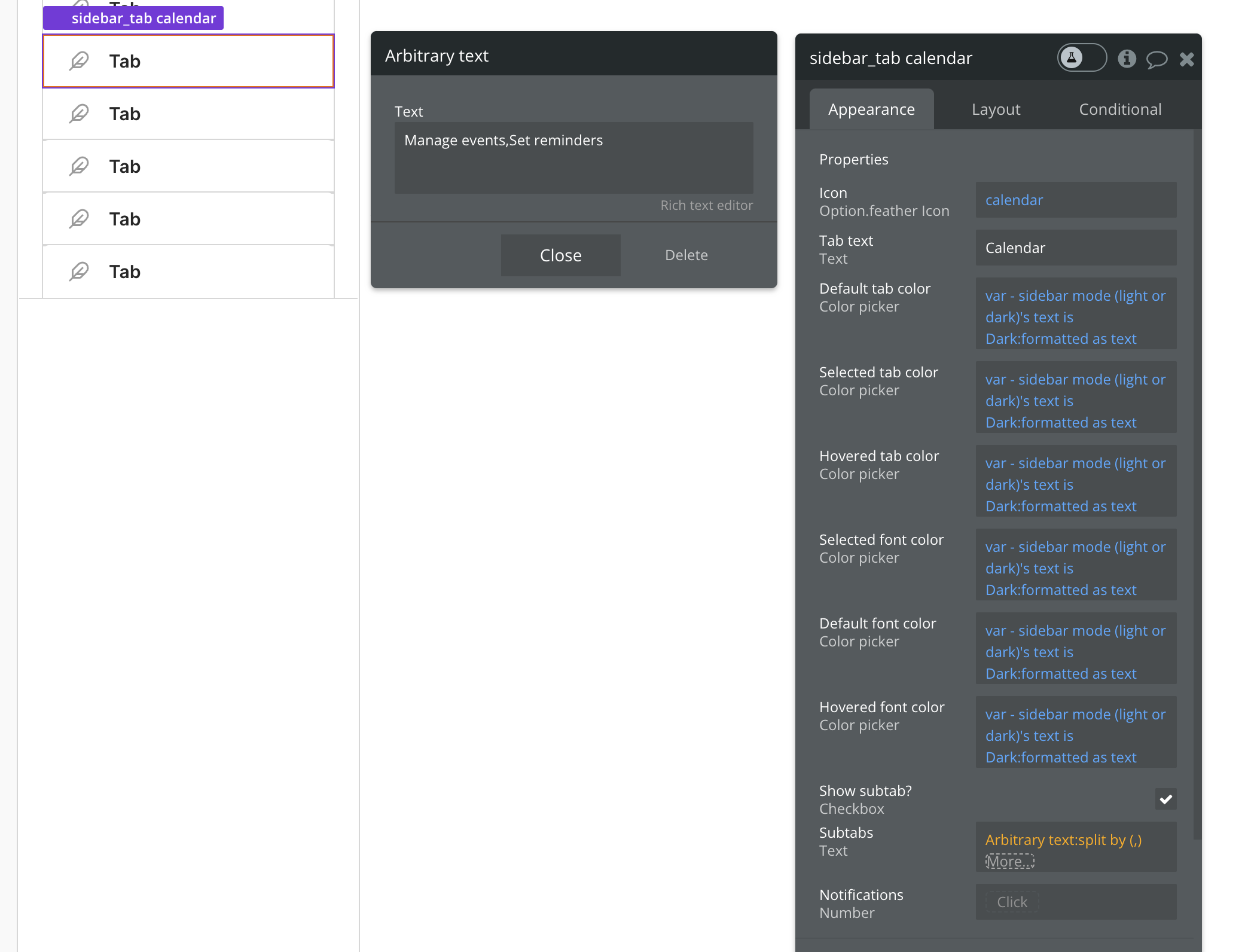
**Overview:** Used as sidebar tabs in the admin page and standard portal pages. You can copy and paste an existing sidebar\_tab and define the [reusable element properties](https://manual.bubble.io/core-resources/elements/reusable-elements#reusable-element-properties) below:
**Icon**\
Tab feather icon
**Tab text**\
Tab name (e.g. Users or Data type 1 from the image above)\
This will be used as the tab's name and as a parameter in the url (\&tab=Tab text)
**Default tab color**\
Default tab background color
**Selected tab color**\
Tab background color for a selected tab (e.g. Blue tab in image above)
**Hovered tab color**\
Tab background color for a hovered tab (e.g. Gray tab in image above)
**Selected font color**\
Font and icon color for select tab
**Hovered font color**\
Font and icon color for hovered tab
**Show subtab (y/n)**\
If selected, a chevron icon will show next to the Tab text
**Subtabs (string of text)**\
Utilize Bubble's `arbitrary text` to pass and parse a string of subtab text
**Notifications (number)**\
If this value is not empty, a notifications badge with a count number will show
Example of defining a list of subtabs using 'Arbitrary text'
**Workflows**: Workflows to navigate to tab or subtab are included in this reusable element:
* Clicking on a tab will append tab=**Tab text** to the url
* Clicking on a subtab will append **sub=Subtab text** to the url
**How to setup**\
To show different content groups for each selected tab, you will add a conditional statement to the content group similar to the one below on the admin page or other portal pages:

or 'Get tab from page URL is sidebar\_tab's text'